 Keet Support
Notifications
Go to 'Profile' / 'Notifications' to specify how and when you receive notifications and customize sound and ringtone.
How do I manage notifications in Keet?
Go to 'Profile' / 'Notifications' to specify how and when you receive notifications and customize sound and ringtone.
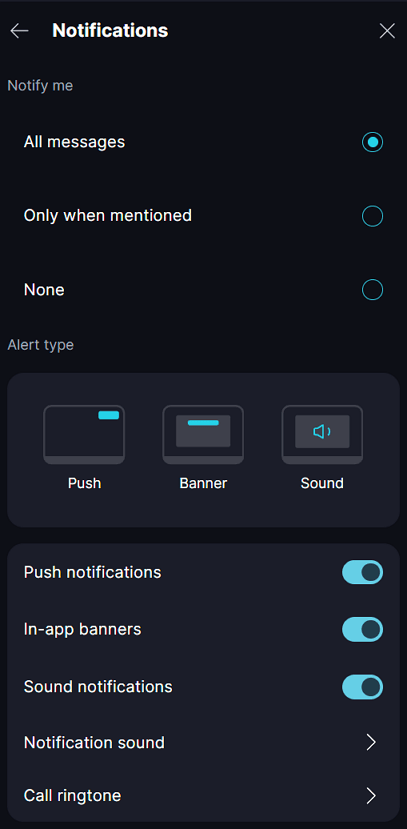
Go to 'Profile' / 'Settings' / 'Notifications and Sounds' to customize notification sound and call ringtone.
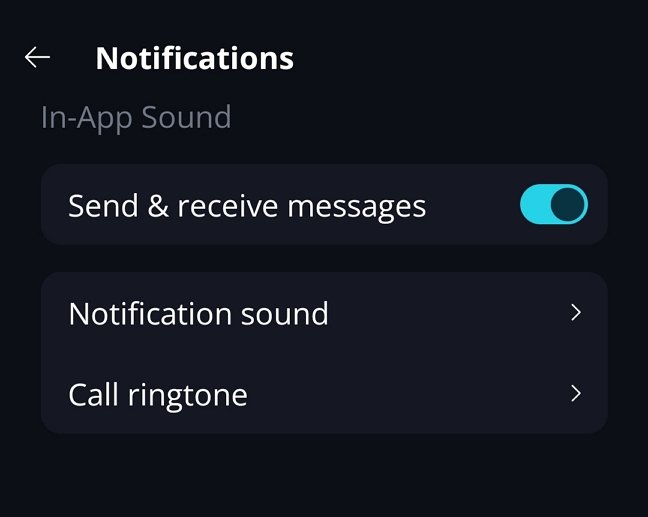
Here you can also toggle in-app sounds for sending and receiving messages when Keet is open.
🔊 Ensure push notifications are enabled in your mobile device settings for the Keet app.
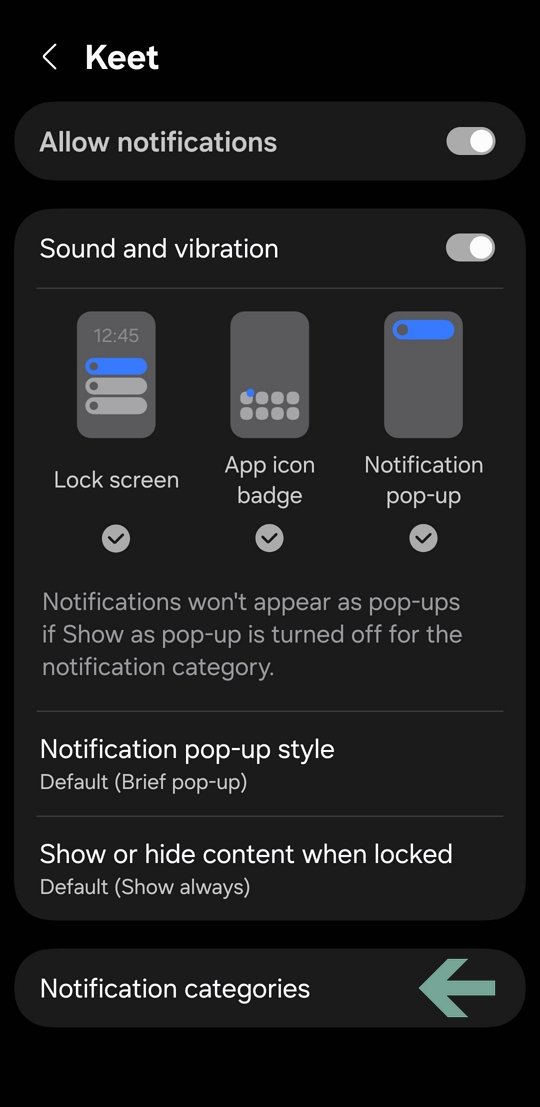
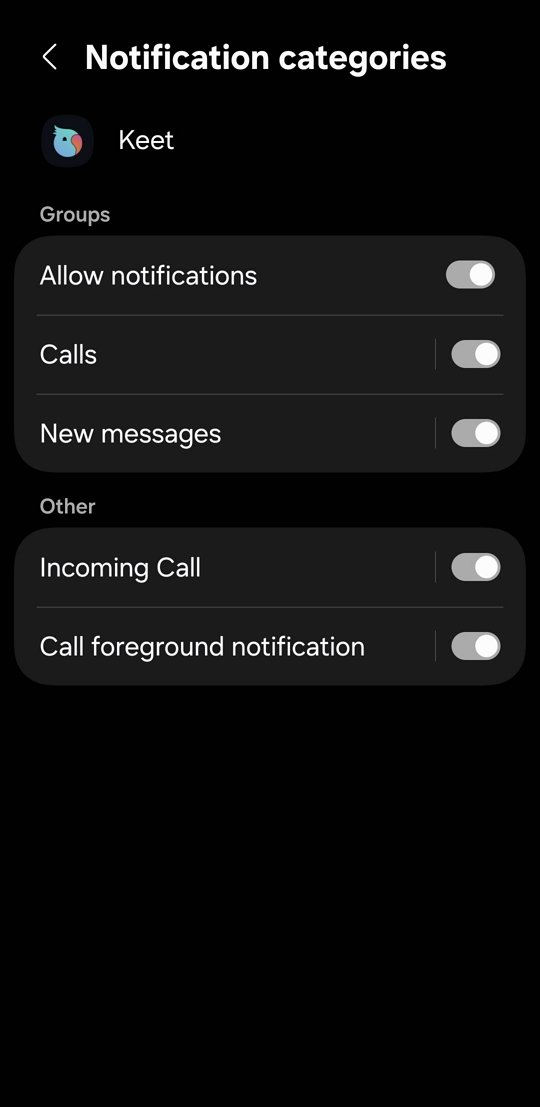
Open your device 'Settings' / 'Apps' / 'Keet' / 'Notifications'.
Android:
iOS:
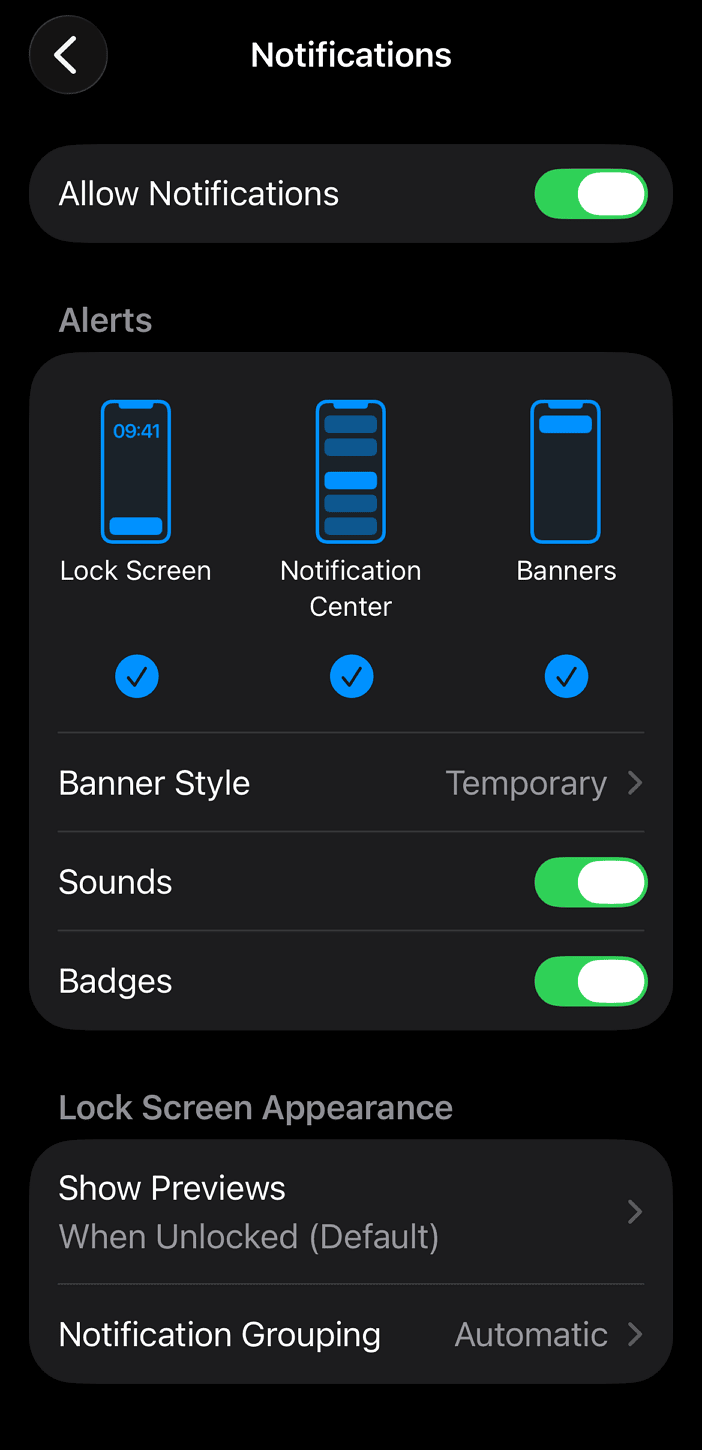
Make sure all the necessary categories are enabled; otherwise, you may miss push notifications for messages, incoming calls, or mentions.
The exact location of the Notifications menu may vary depending on your device and OS version.
Why am I not receiving notifications?
- Check that notifications from Keet are enabled on your device and that your internet connection is stable.
- Re-enable the notification for Keet in 'System' / 'Settings' / 'Apps' / 'Keet' / 'Notifications' by toggling 'Allow notifications' off and on again.
- Make sure your device isn’t in Silent, Focus, Do Not Disturb, Reduce Interruptions or Sleep mode, etc, or add Keet to the exceptions for these modes.
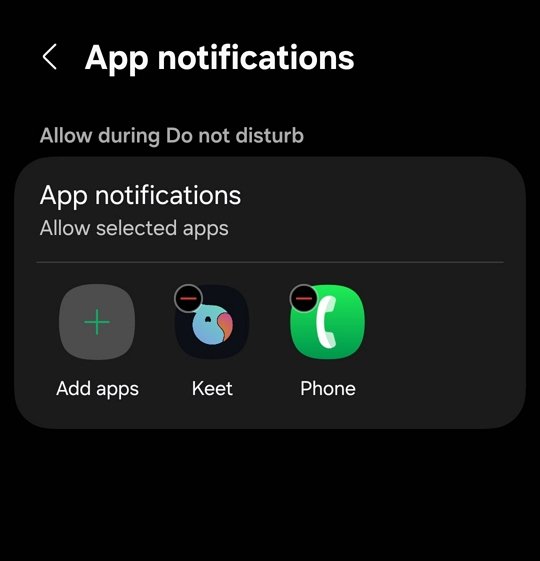
- Ensure Keet isn’t restricted by your device’s background activity or battery optimization settings (sometimes referred to as sleep/deep sleep mode).
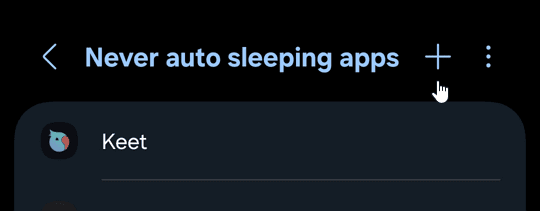
- Make sure you’re running the latest version of Keet, as updates can improve notification reliability.
Can I mute group chat notifications for a particular time period?
Not for an individual group yet - for a single group, you can only toggle its notifications on or off manually. If you want to pause alerts for a set time, you can snooze all notifications app-wide instead, from 30 minutes up to 1 day.

If you are experiencing further issues, please submit a bug report to the 'Bug Bandits' group and our team will look into it.